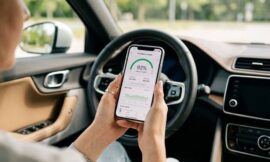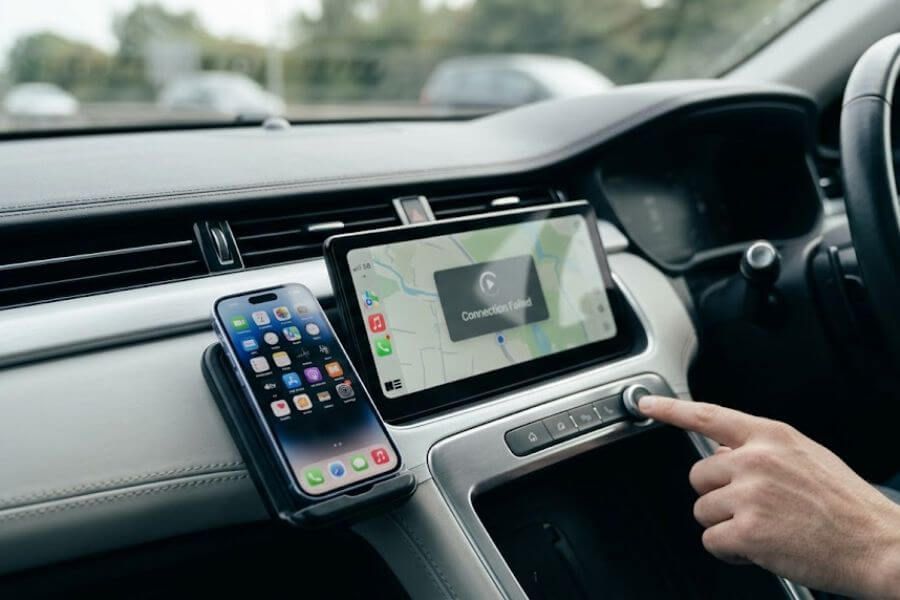
You hop into your driver’s seat, press the start button, and wait for your favorite playlist to kick in. Instead, you are greeted by a blank screen or an endless loading wheel. Wireless smartphone integration was supposed to liberate us from the tyranny of tangled cords, yet here you are, staring at a frozen dashboard before your morning commute. When your wireless connection drops, it feels like your modern vehicle has suddenly rolled back into the previous decade.
Fixing these digital hiccups does not require a degree in computer engineering. Most connection failures come down to invisible software conflicts, chaotic radio waves, or simple setting toggles that changed during your last overnight phone update. This guide unpacks exactly why your smart cockpit is acting up and provides the ultimate game plan to restore your wireless connection immediately.
How Wireless Car Connections Actually Work Behind the Scenes
To solve a problem, you first need to understand the magic happening right under your dashboard. Many drivers assume that wireless systems run entirely on Bluetooth. In reality, Bluetooth is merely the digital handshake that gets the conversation started.
When you turn on your vehicle, your phone and the infotainment system look for each other using low-power Bluetooth signals. Once they recognize each other and confirm a secure bond, your phone instructs the car to activate its internal Wi-Fi network. This is where the heavy lifting happens. Bluetooth simply lacks the bandwidth required to stream high-definition navigation maps, high-fidelity audio, and touch-screen inputs all at the same time.
Your phone connects to the vehicle’s localized 5GHz or 6GHz Wi-Fi channel to create a high-speed data tunnel. This dual-channel synchronization must remain perfectly stable throughout your entire drive. If the Bluetooth handshake stumbles, or if the Wi-Fi tunnel faces an unexpected interruption, the entire system collapses, leaving you with a disconnected screen. Understanding this tag-team relationship between Bluetooth and Wi-Fi is your secret weapon when hunting down connection errors.
The Bluetooth Handshake Protocol
The initial connection phase relies on the Bluetooth pairing profile. Your car acts as the master device, broadcasting its identity to recognized phones nearby. Your phone listens for this specific beacon and responds with an encrypted security key. This background conversation happens within the first three to five seconds of turning your key or pressing the ignition. If your phone is distracted by another Bluetooth device, such as a wireless smartwatch or fitness tracker, the initial handshake can time out, causing the system to abort the startup sequence entirely.
The Wi-Fi Data Tunnel and Bandwidth Demands
Once the handshake concludes, your phone drops the heavy data load onto the vehicle’s private Wi-Fi network. This network does not require cellular data to function; it is simply a local bridge between the phone’s processor and your dashboard display. In 2026, data demands are higher than ever because modern infotainment systems render beautiful 4K maps and stream multi-channel spatial audio. The phone constantly compresses this massive stream of data and sends it over the air, where your car uncompresses it instantly. Any drop in signal strength or data packet loss results in audio stuttering or visual lag.
The Invisible Enemies Wi-Fi Interference and Spatial Blind Spots
Have you ever noticed that your wireless connection always drops at the exact same intersection on your way to work? You are not losing your mind, and your phone isn’t broken. You are likely encountering real-world spatial interference. Because wireless systems depend heavily on the 5GHz radio spectrum, they are highly sensitive to environmental signals that compete for the same frequencies.
High-Density Urban Traffic and Overlapping Frequencies
When you drive through busy downtown corridors or crowded toll plazas, the air is thick with competing wireless networks. Municipal traffic cameras, automated building security systems, and hundreds of other vehicles nearby are all shouting across the same radio bands. This crowded environment causes a massive drop in your signal-to-noise ratio. Your vehicle’s infotainment system struggles to hear your phone over the surrounding digital noise, leading to sudden disconnects that magically resolve once you drive away from the crowded area.
Dynamic Frequency Selection and Radar Overrides
Many modern vehicles use Dynamic Frequency Selection channels to maintain high-speed wireless connections. These channels share space with critical radar systems, including military radar, weather tracking stations, and airport communication towers. By law, if your car detects a priority radar signal on the channel it is using, it must immediately vacate that frequency to avoid interference. When your head unit abruptly drops the Wi-Fi connection to search for a clean, legal frequency, your dashboard screen goes black without warning.
Internal Vehicle Interference and Dashcams
The interference might even be coming from inside your own cabin. Integrated electronics, specifically cheap aftermarket dashcams or non-certified wireless phone chargers, can emit significant electromagnetic interference. If you mounted a dashcam directly behind your rearview mirror, right next to your car’s factory Wi-Fi antenna, its unshielded internal wiring could be actively choking the wireless signal traveling to your phone.
The Silent Culprits Hidden in Your Phone Settings
Sometimes the issue has nothing to do with the outside world. Instead, your phone’s operating system might be actively blocking the connection to keep you safe or to conserve battery life. Phone software updates often reset obscure permissions without telling you, turning your perfectly functional smart cockpit into a stubborn brick.
Voice Assistant Dependencies
Both Apple and Google design their car integration platforms with a safety-first mindset. Because of this design choice, both platforms have a strict dependency on their respective voice assistants. If you turned off Siri on your iPhone, or if you disabled the “Hey Google” detection voice prompts on your Android device to save battery, wireless connectivity will refuse to boot up. The system assumes you cannot operate the interface safely without hands-free voice commands, so it quietly blocks the connection from starting.
Screen Time and Content Restrictions
Parental controls and digital well-being settings can accidentally lock you out of your car’s screen. If your phone has strict Screen Time restrictions active, or if Content and Privacy Restrictions are enabled after an operating system update, these platforms can be blocked at the app-permission level. The phone treats your dashboard as an external unapproved accessory and cuts off the data stream, offering no error messages or explanations to the driver.
Power Management and Battery Saver Modes
When your phone battery drops below twenty percent, the internal power-management software goes into survival mode. To save juice, the operating system aggressively throttles background wireless radios, shuts down secondary Wi-Fi antennas, and reduces data throughput. Because wireless car integration requires significant processing power and dual-band radio usage, your phone’s low-power mode will often drop the connection entirely or refuse to initiate a fresh handshake until you plug the phone into a charger.
The Modern Software Bugs of 2026
Software evolves rapidly, and with modern operating systems like iOS 18+ and Android 16+, new features introduce unexpected challenges for vehicle communication protocols. Keeping up with these modern quirks is half the battle when keeping your dashboard stable.
Virtual Private Networks and Security Tunnels
Virtual Private Networks are fantastic for protecting your data on public networks, but they are an absolute nightmare for wireless car connections. A VPN works by forcing all of your phone’s internet and local network traffic through an encrypted security tunnel. When your phone tries to talk to your car’s local Wi-Fi network, the active VPN intercepts the data and tries to route it through an external secure server instead. This breaks the local connection loop completely, leading to a permanent “Searching for Phone” message on your dashboard.
Rotating Private Wi-Fi Addresses
Modern privacy features focus heavily on tracking prevention. Both major mobile operating systems now include options to rotate your device’s hardware identity, known as the MAC address, whenever it connects to a Wi-Fi network. If your phone presents a brand-new, randomized MAC address every single time you start your car, your vehicle’s infotainment system gets confused. It treats your phone as an entirely new, unverified device rather than a trusted companion, causing the automated pairing sequence to fail.
Cloned Apps and Secure Folder Sandbox Conflicts
Many users take advantage of software sandboxing features to run dual profiles for social media or work messaging apps. These features create isolated digital vaults on your phone. Unfortunately, these sandboxes often duplicate core background services, such as Google Play Services. When your phone attempts to project its interface to your car, the projection engine encounters multiple competing instances of these background services and gets stuck in a loop, throwing a connection error because it cannot determine which sandbox profile holds the authorization token.
Artificial Intelligence Integration Overload
With the deep integration of next-generation artificial intelligence models handling your incoming notifications and generating real-time text summaries, your phone’s processor works hard behind the scenes. If your phone is simultaneously processing an intricate navigation route, streaming high-definition audio, and using local AI models to summarize a massive group chat thread, the local processing load can cause a temporary data bottleneck. This can result in a sudden interface freeze or a total system crash.
Vehicle-Specific Quirks and How to Force a Hard Reset
Your phone is only half of the equation; your vehicle’s infotainment system is essentially a computer on wheels, complete with its own operating system, memory cache, and software glitches. Different automotive manufacturers build their digital systems differently, meaning a fix that works on one brand might do absolutely nothing on another.
Infotainment System Memory Bloat
Just like a home computer or a smartphone, your car’s head unit accumulates temporary files, logs, and cache data over months of continuous operation. If this memory cache becomes bloated or corrupted, the system’s wireless module can lock up, preventing it from processing new Bluetooth handshakes or managing Wi-Fi data packets. Simply turning your car off and back on again rarely clears this deep system memory because modern vehicles keep their infotainment computers in a low-power standby mode for several minutes after you exit the cabin.
Brand-Specific Reset Sequences
When your dashboard display freezes or refuses to discover your phone, you need to bypass the standard standby mode and force a hard hardware reboot. Here is how you can achieve this across various popular car brands without altering your personal driving preferences or wiping your radio presets:
- Toyota and Lexus Systems: Locate the physical volume knob on your dashboard. Press and hold this knob down continuously for exactly three seconds. The screen will turn black, clear its system memory, and display the manufacturer logo as it performs a fresh reboot.
- Ford Sync Platforms: Locate the physical volume down button on your steering wheel or dashboard, and simultaneously press and hold the “Seek Forward” button. Hold both buttons down for roughly five to ten seconds until the display panel cycles off and restarts.
- Volkswagen, Audi, and Porsche Units: Press and hold the physical power button or volume knob on the center console for ten to fifteen seconds. This forces the internal multimedia module to purge its active RAM and run a complete cold boot.
- Stellantis Jeep, Ram, and Dodge Systems: Press and hold the green phone call button and the voice recognition button on your steering wheel simultaneously for at least ten seconds until the display darkens and begins its initialization phase.
The Ultimate Step-by-Step Clean Slate Recovery Guide
When minor tweaks fail to deliver a stable connection, trying to patch up a corrupted pairing profile becomes a waste of time. Your best course of action is to perform a comprehensive digital purge. By wiping the slate completely clean on both your phone and your vehicle, you eliminate any broken configuration files and build a fresh, rock-solid link from scratch. Follow this precise sequence to guarantee a successful reset.
Step 1 Purge the Phone’s Connection Profiles
Open your phone’s main settings menu and navigate to the wireless connection area. Enter your Bluetooth device list, locate your vehicle’s specific name, and select the option to forget or delete the device. Next, jump over to your phone’s Wi-Fi settings menu. Look through your saved networks list for your car’s local Wi-Fi profile and delete that as well. Finally, go to your phone’s dedicated projection settings, find your vehicle’s profile name within the saved vehicle log, and tap the delete button to clear out all remaining background data.
Step 2 Purge the Vehicle’s Device Storage
Turn your attention to your dashboard screen. Navigate into the vehicle’s system settings menu and locate the phone integration or connected devices sub-menu. Find your phone listed among the paired profiles. Select your phone and choose the option to completely remove or delete it from the car’s hardware memory. Do not leave any trace of your phone’s identity in the car’s system, as old profile remnants can conflict with a new pairing attempt.
Step 3 Execute a Dual Hardware Power Cycle
Turn your vehicle completely off, open the driver’s door to cut off any remaining accessory power, and step out of the car for a moment. While the vehicle shuts down its computers, take your phone and execute a complete restart. Let both devices sit fully powered down for at least thirty seconds. This short pause allows all volatile memory chips to fully drain their residual electrical charges, completely wiping away any stubborn background processing loops.
Step 4 Re-Establish the Partnership Correctly
Turn your vehicle back on and let the dashboard screen fully load its primary home menu. Unlock your phone and ensure both Bluetooth and Wi-Fi are toggled on in your status bar. Enter your car’s device management menu and select the option to add a new device. Rather than searching from your car screen, open your phone’s Bluetooth menu and look for your car’s broadcast signal at the bottom of the screen. Tap your vehicle’s name to initialize the handshake.
A pairing prompt containing a numerical code will pop up on both your phone screen and your car display. Confirm that the numbers match perfectly, then press the pair button on your phone and the accept button on your dashboard. Your phone will then ask for permission to sync your contacts and allow connection while the device is locked; make sure you grant these permissions. Finally, a prominent prompt will appear asking if you want to enable wireless car integration. Accept this prompt, and your phone will seamlessly pass the connection off to the car’s high-speed Wi-Fi network, completing the clean setup.
Dealing with Wireless Adapters and Aftermarket Dongles
If your car only came equipped with wired connection ports from the factory, you are likely using an aftermarket wireless adapter or dongle plugged into your dashboard to get the job done. While these small devices are incredibly clever, they act as a middleman between your phone and your car, adding an extra layer of software complexity that can sometimes glitch.
The Problem with Outdated Adapter Firmware
Many drivers treat their wireless adapters as plug-and-forget accessories. However, because phone operating systems update constantly, your adapter requires regular software updates to maintain a seamless connection. If your phone receives an update that introduces new security handshakes, an un-updated adapter will struggle to understand the new language, resulting in continuous dropped signals and audio delay.
To resolve this issue, you must connect your phone directly to the adapter’s internal configuration portal. Most brands require you to plug the adapter into a power source, open your phone’s web browser, and type a specific numeric network address into the URL bar while connected to the adapter’s private Wi-Fi network. From this secret portal page, you can check for downloadable firmware updates, optimize your data streaming settings, and clear out old connection logs.
Manually Adjusting the Wi-Fi Channel Lock
If you notice frequent signal drops while driving past specific areas, your adapter might be trying to communicate on a crowded wireless channel. Many high-end adapters allow you to log into their internal configuration settings page and change the Wi-Fi frequency channel manually. Experts suggest changing your wireless adapter from automatic channel selection to a locked, non-DFS channel number, such as channel 36, 40, or 44. By locking your device to a clear frequency, you protect your wireless data tunnel from being suddenly bumped offline by unexpected local radar sweeps or urban signal noise.
Summary Table Common Symptoms and Fast Fixes
| What You Experience on the Road | The Likely Culprit Behind the Issue | The Direct Action to Fix It |
| The display screen goes totally black at specific city intersections. | Heavy local radio interference or local radar overrides. | Change your adapter’s Wi-Fi channel or use a wired cable temporarily. |
| The system connects fine but drops out whenever you lock your phone screen. | The “Allow While Locked” safety toggle is disabled in your settings. | Navigate to your phone’s projection menu and toggle the permission switch on. |
| The dashboard shows an endless “Searching for Phone” loop. | An active background VPN is redirecting your local network traffic. | Turn off your VPN completely or configure split-tunnel exclusions. |
| Audio skips and maps stutter after a major phone software update. | The phone is presenting a rotating, randomized MAC address. | Change your car’s network settings on your phone from “Rotating” to “Fixed.” |
| The connection button is greyed out even though Bluetooth says connected. | Your phone’s voice assistant or background data is disabled. | Turn on Siri or Google Assistant and disable battery saver mode. |
Electric Vehicles and Smart Cockpit Challenges
Electric vehicles place an incredibly heavy emphasis on computer processing power and thermal efficiency. Because an electric vehicle is essentially a giant battery connected to wheels, its power management systems operate under incredibly strict constraints, which can sometimes impact your smartphone integration experience.
Thermal Throttle and Wireless Charging Pads
Wireless car integration is an intense workout for your phone’s internal processor. Your phone is constantly calculating coordinates, streaming media, and encoding video files over wireless radio bands. If you place your phone on your electric vehicle’s integrated wireless charging pad while running these systems, your phone will generate significant internal heat.
To prevent permanent internal damage, your phone’s safety software will trigger thermal throttling, slowing down performance or shutting down high-speed wireless antennas to cool down. If your screen suddenly freezes on a warm day, remove your phone from the charging pad and place it in front of an air conditioning vent to quickly restore normal data speeds.
Battery Preconditioning Resource Demands
When you navigate toward a high-speed charging station, your electric vehicle will often activate a feature called battery preconditioning. This system uses internal thermal elements to heat or cool the car’s battery pack to the perfect temperature for rapid energy acceptance.
In some vehicle models, this intense draw on the car’s low-voltage computer systems can cause minor power fluctuations or temporary network traffic spike shortages inside the vehicle’s communication lines. This sudden processing lag can cause your infotainment screen to stutter or drop its high-speed Wi-Fi connection right as you pull into the charging hub.
A Comprehensive Breakdown of Common Error Messages
When your smartphone integration platform fails to launch, it will occasionally provide a specific numerical error code on your dashboard or phone screen. Decoding these technical error messages gives you a direct map to the root cause of the problem.
Communication Error 8 The Encryption Handshake Mismatch
This frustrating error code indicates a failed security handshake between your vehicle’s head unit and your phone. It frequently occurs when your car’s internal operating system fails to recognize the updated encryption protocols of a brand-new smartphone software version.
The primary fix for this issue involves checking the system clocks on both your vehicle dashboard and your phone. If your car’s internal clock is out of sync with your phone’s GPS-verified time by even a single minute, the security certificates will be rejected as invalid. Ensure your vehicle’s time settings are configured to update automatically via GPS data.
Communication Error 16 The Sandbox Isolation Conflict
This specific error message points directly to a software conflict within your phone’s background application system. It occurs when the projection engine detects multiple conflicting copies of necessary system services, which is common if you use secure data vaults, application duplicators, or work-profile partition software. To get past this roadblock, you must temporarily disable your cloned apps or move them out of your device’s secure digital folders, allowing the car connection service to run without competing for system authorization.
Communication Error 22 The Network Routing Blockade
Error 22 is an explicit network routing failure. It means your phone has successfully connected to your car via Bluetooth and Wi-Fi, but the data stream cannot find its way through your phone’s internal network card. This is almost always caused by an over-aggressive ad-blocking application or a background security program that filters local data traffic. To resolve this error, you need to open your security app’s advanced settings and enable network split-tunneling, which allows your local car connection to bypass the protective digital filters completely.
When to Give Up and See a Professional Technician
You have adjusted every hidden setting toggle, executed multiple hard resets, and purged your connection history, yet your wireless connection remains completely broken. At this point, you may be dealing with a deep physical hardware failure or a corrupted firmware file that requires professional tools to fix.
Dealership Firmware Flashes
Automotive manufacturers regularly release software updates to resolve compatibility issues with newly released smartphones. However, unlike phone updates that download overnight, major vehicle firmware updates often require a trip to your local dealership service bay. A technician will plug a specialized diagnostic computer directly into your car’s physical data link connector to flash the internal display control unit with the most stable software version available. If your vehicle is still under its factory warranty coverage, these software updates are typically provided free of charge.
Low-Voltage Vehicle Battery Degradation
Your car’s infotainment system is incredibly sensitive to the electrical voltage supplied by your vehicle’s twelve-volt battery. As a car battery nears the end of its natural lifespan, its resting voltage drops slightly.
To protect critical driving components like power steering and braking systems, your vehicle’s main computer will automatically shut off non-essential electronic features during startup. If your wireless smartphone connection has become increasingly flaky or takes several minutes to boot up after your car has been parked overnight, have an auto parts store run a health check on your car battery. Replacing an old battery can instantly bring your smart cockpit back to life.
Frequently Asked Questions
Why does my phone get so hot when using wireless car connectivity?
Wireless car integration forces your phone to perform several intense tasks simultaneously. Your phone’s processor is constantly calculating your location via GPS, streaming audio over cellular networks, rendering a high-definition map, and compressing that video data to stream it over Wi-Fi. This intense activity creates substantial internal heat. To keep temperatures under control, avoid placing your phone in enclosed spaces like a closed center console or directly under hot sunlight on a charging pad. Instead, place your phone where cabin air can circulate around it.
Can I use my phone’s portable Wi-Fi hotspot while using wireless CarPlay or Android Auto?
In most modern smartphones, you cannot use your phone as a portable Wi-Fi hotspot for other devices while simultaneously running wireless car features. This limitation exists because your phone’s internal wireless card can only manage one local Wi-Fi direct connection at a time. When you initiate wireless car projection, the high-speed connection completely occupies your phone’s Wi-Fi radio, automatically turning off any active hotspot sharing features until you disconnect from your vehicle.
Why does my navigation map spin around or show me in the wrong location?
When your phone connects wirelessly to your dashboard, it often stops using its internal GPS antenna and switches to using your vehicle’s larger, roof-mounted GPS antenna to save battery power and improve accuracy. If your vehicle’s internal navigation module is glitching, or if your car’s roof antenna is obstructed by heavy snow, thick mud, or an aftermarket roof rack, your phone will receive inaccurate location data. This results in your navigation apps showing you driving through fields or heading in the completely wrong direction.
Will updating my phone’s operating system break my wireless vehicle connection?
Major operating system updates introduce updated security handshakes, fresh power-saving rules, and altered wireless data protocols. While these changes make your phone safer and more efficient, they can occasionally break compatibility with older car infotainment systems that do not know how to speak the new digital language. If you experience sudden connection drops immediately after an overnight phone update, you will likely need to wait for your car manufacturer to release a corresponding infotainment firmware patch, or perform a clean slate reset to clear out conflicting connection files.
Why does it take so long for the wireless connection to boot up when I start my car?
The delay you experience when first starting your vehicle is caused by the sequence of electronic events required to build the wireless bridge. Your car’s infotainment computer must first load its core operating system into its RAM, activate its Bluetooth beacon, locate your phone, complete the security handshake, spin up its local Wi-Fi network, and wait for your phone to start streaming data. This sequence can take anywhere from fifteen to forty-five seconds depending on how fast your vehicle’s processor is. If the process takes significantly longer, clearing out old paired devices from your car’s memory can speed up the startup sequence.
Does wireless smartphone integration use more cellular data than a wired connection?
Wireless connectivity itself does not consume any additional cellular data from your monthly phone plan. The local Wi-Fi link between your phone and your dashboard is completely free and acts purely as a local bridge to transfer screen images and audio data. A map route or music playlist will consume the exact same amount of cellular data whether your phone is resting on your passenger seat connected wirelessly or plugged into a physical dashboard port with a high-quality data cable.